When someone is inside your app or on your site, you have their attention in a way no email or push notification can match. In-app messaging lets you speak to them right there, in context, at the moment they are using the product. Done well, it guides new users, announces features, collects feedback and nudges people towards the next step. Done badly, it is a pop-up that blocks the screen and gets dismissed. This guide explains what in-app messages are, the main formats, when each works, how to target and time them, how to measure them and how to avoid annoying people.
What is in-app messaging?
In-app messaging means showing messages to users inside a mobile app or a web product while they use it. Unlike push notifications, which arrive from outside the app, or email, which waits in an inbox, in-app messages appear in the product itself, so they are seen by people who are already active. They are closely related to push technology and sit alongside it in a complete messaging plan. In-app messages cost nothing to deliver, need no opt-in permission from the operating system and are shown only to people who are present, which makes them a natural fit for guidance and conversion in the moment.
Formats and when to use them
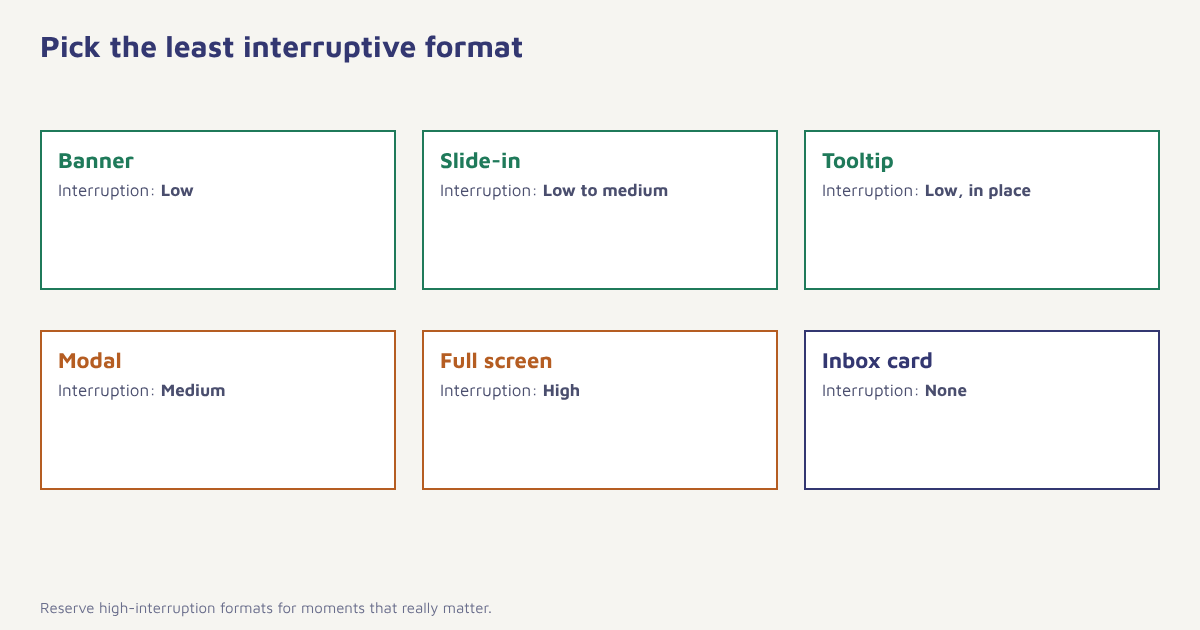
| Format | Interruption | Best for | Example |
|---|---|---|---|
| Banner or toast | Low | Status, small tips, time-limited offers | Free delivery over Rs 999 today |
| Slide-in | Low to medium | Contextual suggestions | Add a size guide to this product |
| Modal dialog | Medium | One important message needing a choice | Rate your experience |
| Full-screen takeover | High | Major launches, onboarding steps | Welcome tour, new version |
| Tooltip or coach mark | Low, tied to a spot | Teaching a feature in place | Tap here to save for later |
| Inbox or message centre | None, user-initiated | Offers, receipts, history | Saved messages from the brand |
| Embedded card | None | Personalised content inside a feed | Recommended for you |
Use a modal sparingly. A full-screen message at launch is an interruption, and people learn to dismiss them without reading. Reserve higher-interruption formats for moments that really matter, and use quieter ones for everything else.
Use cases that work
- Onboarding. Guide new users through the first actions that lead to value. See customer onboarding.
- Feature adoption. Tell people about a feature when they are in the right screen to use it.
- Cart and checkout help. Offer delivery information or a nudge when someone hesitates. See abandoned cart recovery.
- Feedback. Ask for a rating after a successful action. See NPS, CSAT and CES.
- Announcements. New versions, maintenance, policy changes.
- Re-permissioning. Ask users to turn on push or update consent at a good moment.
- Upgrades and offers. Relevant, time-limited and based on behaviour.
Targeting and timing
The main advantage of in-app messaging is context. A message about a feature is useful when the person is on the screen where it applies, and annoying anywhere else. Trigger on events: a user views a product three times, completes a first task, fails a payment, or has not used a feature after a week. Use segments to decide who sees what. New users need guidance and experienced users do not. People who have already used a feature do not need to be told about it. The segment builder and the event data make these rules possible, and our guide to customer segmentation explains how to think about them.
| Rule | Why it matters |
|---|---|
| Trigger on behaviour, not just time | Messages feel relevant |
| Exclude people who completed the action | No point asking for what is done |
| Cap the number per session | Prevents stacking pop-ups |
| Limit the number per week | Protects experience |
| Delay after launch | Let users see the first screen before you speak |
| Respect dismissals | If someone closes a message twice, stop showing it |
Writing in-app messages
Space is tight and attention is short. Lead with the benefit, keep the headline under about six words, write one sentence of body text and offer one clear button. Make the dismiss option obvious and easy to tap. Test the message on a small phone to be sure the text and button fit. Use the same tone as the rest of the app, and add an image or an icon only if it adds meaning. A clear example of a good in-app nudge reads: “Save time next order. Add your delivery address. [Add address]”. A poor one reads: “Exciting news! We have updated our app to give you a better experience. [OK]”. The first tells people what they gain, and the second tells them nothing.
How to set up in-app messaging
- Pick one goal. For example, raise the number of users who add an address, complete their profile or reach the first purchase.
- Install the SDK or snippet. Your app or site needs the messaging SDK so that it can receive and display messages and send back events.
- Send the events that matter. Screen views, key actions and attributes. See the data model guide and first event.
- Build the segment. Define who should see the message and who should not.
- Create the message. Choose the format, write the copy and set the button action, such as opening a screen.
- Set the trigger and limits. Which event shows it, how often and for how long.
- Preview and test. On real devices, in different screen sizes.
- Launch and measure. Start with a small share of users and widen.
In Flowfox, you create in-app messages alongside other channels and can include them in a journey, for example showing an in-app tip after a push notification is tapped, or falling back to an email if the user does not open the app within two days. The in-app channel page lists the formats and the web messaging page covers the web equivalent. Use analytics to measure results.
{
  "channel": "in_app",
  "format": "slide_in",
  "trigger": { "event": "product_viewed", "count": 3, "within": "7 days" },
  "audience": { "segment": "no_purchase_30_days", "consent": "in_app" },
  "content": {
    "title": "Still thinking it over?",
    "body": "Free delivery on orders above Rs 999.",
    "button": { "label": "View cart", "action": "open_screen:cart" }
  },
  "limits": { "per_session": 1, "per_week": 3, "dismiss_suppress_after": 2 }
}
How to measure it
| Metric | What it shows |
|---|---|
| Impressions | How many people saw it |
| Click-through rate | Interest in the message |
| Dismissal rate | Annoyance or irrelevance |
| Conversion rate | Whether the target action happened |
| Feature adoption | Use of the feature after seeing the message |
| Retention | Whether users who saw it stay longer. See cohort analysis |
Use a control group that does not see the message to measure the true lift, especially for onboarding and feature messages where users might have acted anyway. Test one change at a time, such as the headline or the format, following the method in our A/B testing guide. For wider context on user experience patterns, the article on user experience and on mobile apps offers useful background, though your own data will tell you more about your users.
Combine channels. In-app, push and email work best together. Use in-app for users who are present, push for those who are not and email for detail. Frequency caps should apply across all of them so that the same user does not get three messages about the same thing. See omnichannel marketing and push notifications.
Common mistakes
- Interrupting too early. Let users see the product before you pitch it.
- Stacking pop-ups. One at a time, with a cap.
- Showing messages to the wrong people. Exclude those who already did the thing.
- Hard-to-find close buttons. It breeds resentment.
- No measurement. Without a control group you do not know what worked.
An in-app message is a conversation in someone’s living room. Be useful and be brief.
Guide users in the moment. Target by behaviour, set limits and measure the lift across in-app, push and email.
Continue with push notifications and customer engagement, and visit the blog.
Frequently asked questions
What is in-app messaging?
In-app messaging shows messages to users inside a mobile app or web product while they use it, such as banners, modals and tooltips, triggered by behaviour and targeted by segment.
What is the difference between in-app messages and push notifications?
Push notifications reach users outside the app and need permission. In-app messages appear only while the user is in the product and need no operating system permission.
When should I use a modal in-app message?
Use modals sparingly for one important message that needs a choice, because they interrupt the user. Prefer banners, slide-ins or tooltips for most guidance.
How many in-app messages should I show?
Cap them per session and per week, show one at a time, and stop showing a message after a user dismisses it a couple of times.
How do I measure in-app message performance?
Track impressions, click-through, dismissals and conversion, and compare with a control group that did not see the message to measure the real lift.
Can in-app messaging help onboarding?
Yes. Tooltips, checklists and short guided steps help new users reach their first valuable action, and triggers can skip steps already completed.
Do I need user consent for in-app messages?
In-app messages need no operating system permission, but you should still follow your privacy notice and any consent rules for marketing content and personal data.