You have seen them a thousand times: a small red circle with a number on an app icon, or a quiet dot in the corner. They are notification badges, also called app icon badges, and a surprising number of people search for what they mean, why they appear and how to turn them off. For marketers and product teams, badges are a quiet but powerful nudge, because they sit on the home screen where people look many times a day. This guide explains what badges and dots mean on iPhone and Android, how they work, how to control them as a user, and how to use them responsibly as a business without becoming the app that people mute.
What is a notification badge?
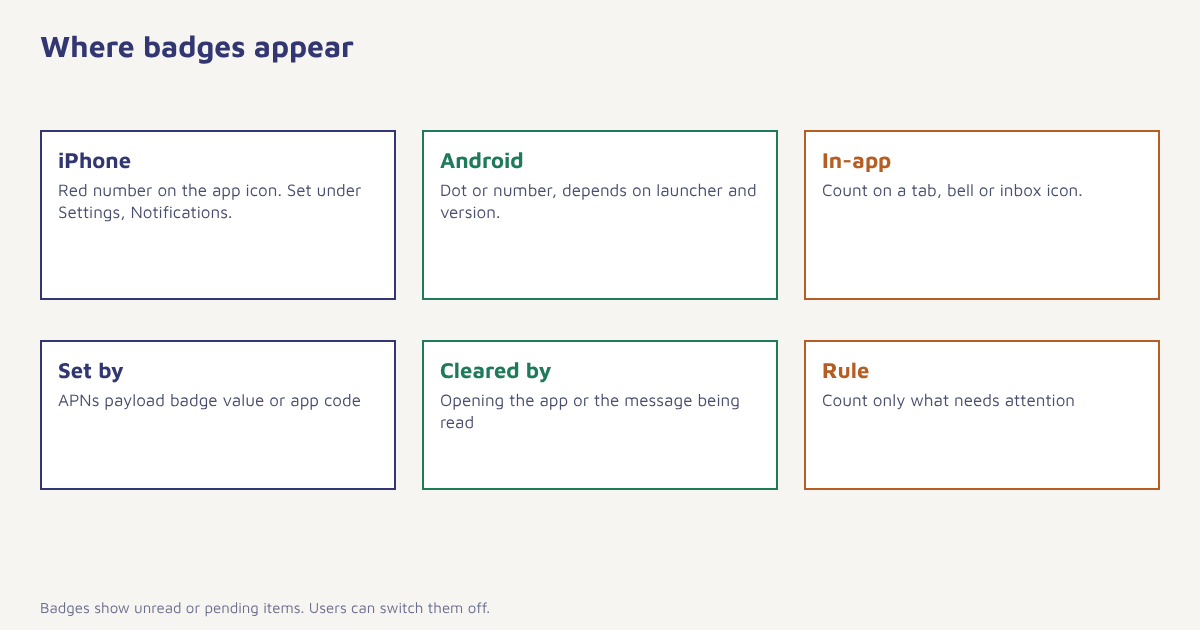
A notification badge is a small visual marker on an app icon that tells the user something new is waiting inside the app. It can be a number, such as 3 unread messages, or a plain dot with no number. The badge is set by the app itself, usually when a push notification arrives or when the app updates its own count in the background, and it stays until the app clears it. Badges are not a separate message. They are a lightweight signal that works even when a notification banner has been dismissed or missed, which is why a customer can ignore a push at noon and still open the app at 3 pm because of the red number on the icon.
What do the numbers and dots mean?
| What you see | Usually means | Platform notes |
|---|---|---|
| Red circle with a number | That many unread items, such as messages, notifications or tasks | Classic iPhone style; many Android launchers can show a number as well |
| Small dot with no number | There is something new, with no count | Android notification dots and some manufacturer skins use a plain dot |
| Dot that disappears when you open the app | New activity was seen | The app or system clears it |
| Dot that stays after you open the app | The app has not cleared it, or it counts something unfinished | Often an app setting or a bug |
| A dot on a settings or menu icon | An update or a new item inside that section | Used inside apps and operating systems |
The meaning is always decided by the app. A messaging app counts unread chats. A shopping app might show a number of unseen offers. A task app might count overdue tasks. If a badge confuses you, open the app and look for the inbox, activity feed or notification centre, which is normally where the count comes from. Phone makers also style badges differently. Some skins show a dot, some a number and some let you choose. The exact look and the name of the setting vary by brand and by software version, so the steps below point to the general path and may differ slightly on your phone.
How to turn badges on or off
| Device | Where to look |
|---|---|
| iPhone | Settings, Notifications, choose the app, then toggle Badges. You can also turn badges off per app while keeping alerts on |
| Android (stock-style) | Long-press the app icon, open App info, Notifications, and check the notification categories. The Notification dots option is in Settings, Notifications or in the launcher settings |
| Samsung | Settings, Notifications, App icon badges, then choose a number or a dot, or turn them off |
| Oppo and similar skins | Settings, Notifications and status bar, choose the app and adjust the badge or dot setting |
| Other launchers | Look in the launcher or home screen settings for an option named badges, dots or notification count |
If a badge never goes away, open the app and clear its inbox, force-stop and reopen the app, check for an app update, and as a last step, turn badges off for that app. A badge that sticks is often a bug in the app, not something you did wrong.
How badges work under the hood
The operating system, not the app, draws the badge, but the app decides the number. On iPhone, a push notification can carry a badge value that the system applies to the icon, and the app can also set it while running. On Android, support depends on the system version and the launcher. Since Android 8.0, notification dots appear automatically for apps with active notifications, and some launchers and phone makers add numeric badges on top. The services that deliver notifications are described in the articles on Apple Push Notification service and Firebase Cloud Messaging, and the practical side is covered in our guide to push notifications. A simplified iPhone payload that sets the badge looks like this.
{
  "aps": {
    "alert": { "title": "Order shipped", "body": "Your Trail Runner is on its way" },
    "badge": 1,
    "sound": "default"
  },
  "order_id": "FX-20481"
}
The important design point is that the number you send replaces the previous one, it does not add to it. If you send a badge of 1 three times, the icon shows 1, not 3. To show an accurate count, your server or app has to keep track of what is unread and send the total, and it has to clear or reduce the badge when the person reads the item. Many bad badge experiences come from skipping that step.
Why badges matter for businesses
- They persist. A banner disappears in seconds. A badge stays on the home screen until it is cleared, so it works as a gentle reminder.
- They need little attention. A number is quicker to read than a message, so it suits low-urgency updates.
- They bring people back into the app. Users often open an app because of a badge, even when they ignored the push.
- They can annoy. A badge that never clears or counts promotions teaches people to turn it off, and they may turn off all notifications at the same time.
Badges are a promise. A red number tells the person that something needs them. If you use it for marketing noise, they learn to ignore it, and they ignore your genuinely important notices too.
Best practices for using badges
- Use badges for real unread items. Messages, order updates, tasks due and similar items that genuinely wait inside the app.
- Keep the count accurate. Reduce it as items are read and clear it when the inbox is empty.
- Separate promotions from important updates. Do not count offers in the same badge as messages from a person, unless the user chooses it.
- Ask before you rely on them. Notification permission also governs badges on many systems, so explain the benefit at the right moment and respect refusals.
- Offer a setting inside the app. Let people choose which categories add to the badge, which is part of good consent practice.
- Test the effect. Compare return rate and opt-out rate with and without badge updates. See A/B testing.
- Clear on open. Resetting the number when someone opens the relevant screen builds trust.
In Flowfox, you can set the badge value as part of a push message and use journeys to clear it when the customer completes the action, for example when an order is delivered. Combine it with in-app messages and an inbox card so that what the badge promises is visible when the app opens. The push channel page and in-app channel page describe the options, and analytics shows opens and opt-outs after each change.
Privacy and permission
A badge reveals that you have something for the user, even on a locked screen, so use it for the right kind of information. Do not put sensitive details in the number or in the notification text, such as balances or health information, because other people may see the screen. Respect the user’s choices: if they turn badges off, do not look for another way to show the same nudge. Notification permission is a form of consent to be contacted, and our customer engagement guide explains how to balance reach with respect.
Common mistakes
- Badges that never clear. The fastest route to being muted.
- Counting everything. Offers, tips and messages in one number make the signal meaningless.
- Setting the badge on every push. Send the correct total, not a fixed number.
- Forgetting platform differences. Test on iPhone, stock Android and the manufacturer skins that your customers use.
- Assuming badges are always shown. Users and systems can turn them off, so important messages need another route.
A badge is the smallest message you can send. Make every one of them true.
Send notifications that earn the tap. Control badge counts, clear them on action and measure opt-outs in one place.
Read next: push notifications, in-app messaging and the blog.
Frequently asked questions
What is a notification badge?
A notification badge is a small marker on an app icon, either a number or a dot, that tells you the app has something new, such as unread messages or updates.
What does the dot on an app icon mean?
A dot usually means the app has new or unread activity but does not show how much. The meaning is set by the app, and the dot style depends on your phone and launcher.
How do I turn off app icon badges?
On iPhone, go to Settings, Notifications, choose the app and turn off Badges. On Android, use the app notification settings or the launcher or manufacturer setting for badges or notification dots.
Why does the badge not go away?
The app may not have cleared its count, or it counts something unfinished. Open the app and clear its inbox, update it, restart it, or turn off its badge as a last step.
Is a badge the same as a push notification?
No. A push notification is a message shown on the screen or in the notification centre. A badge is a persistent marker on the app icon, though a push can update it.
Can an app show a badge without a notification?
Yes. An app can update its own badge count while it runs or in the background, as long as the system permits badges for that app.
How should businesses use badges?
Use them for real unread items, keep the count accurate, clear it on action, avoid counting promotions with important messages and let users choose in app settings.